> ## Documentation Index
> Fetch the complete documentation index at: https://docs.searchable.com/llms.txt
> Use this file to discover all available pages before exploring further.
# Understanding Your Dashboard
> Navigate your Searchable dashboard and complete the essential setup steps
**On this page:** Dashboard Overview • Essential Getting Started Steps • Dashboard Navigation • Understanding Your Scores • Daily Workflow • Common Questions
## Dashboard Overview
Your project dashboard is mission control for monitoring and improving your AI visibility. Once you create your project, you'll see a progress-based checklist that guides you through 5 essential setup steps.
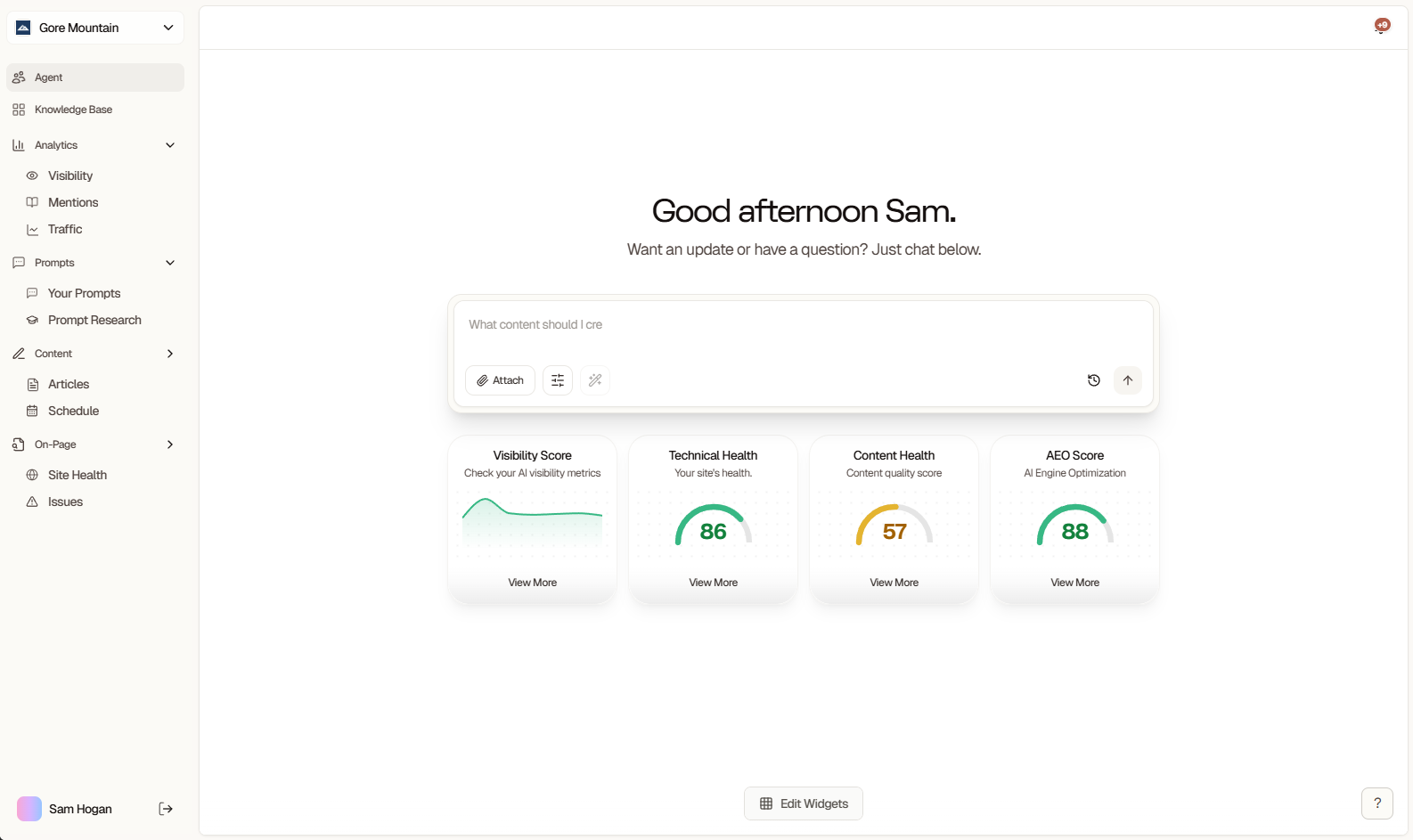 **What you'll accomplish:**
* Train your AI agent with your brand context
* Understand your current AI visibility baseline
* Optimize prompts for better tracking
* Identify and fix technical issues
* Create your first AI-optimized content
The checklist tracks your progress automatically. Complete these 5 steps to unlock the full power of Searchable.
## Essential Getting Started Steps
Complete these actions in order to set up your workspace for success. Each step builds on the previous one.
### Step 1: Update Your Knowledge Base
**Time required:** 10-15 minutes\
**Navigate to:** Dashboard → Knowledge Base
**What it is:**\
Your knowledge base is where you teach Searchable's AI agent about your brand, products, and business context. This enables personalized recommendations throughout the platform.
**What to include:**
* **Brand Overview**: Company description, mission, and key differentiators
* **Products/Services**: What you offer and who it's for
* **Target Audience**: Who your ideal customers are
* **Competitors**: Main competitors you want to track
* **Business Goals**: What you want to achieve with AI visibility
**Why it matters:**\
A well-trained agent provides better content suggestions, more accurate competitive analysis, and personalized optimization recommendations.
**How to complete:**
Click "Knowledge Base" in the sidebar or use the checklist link
Upload documents, paste website copy, or write directly in the editor
Add 3-5 main competitors for comparative analysis
Specify what success looks like (traffic, visibility, rankings)
Save your knowledge base and ask the agent a question to verify it understands your brand
✓ Knowledge base updated - Move to Step 2
***
### Step 2: Review Your Visibility Report
**Time required:** 5 minutes\
**Navigate to:** Dashboard → Analytics → Visibility
**What it shows:**\
Your visibility report tracks how often and where your brand is mentioned across 4 major AI platforms: ChatGPT, Gemini, Perplexity, and Claude.
**Key metrics to understand:**
0-100 score showing how prominently you appear in AI responses
Percentage of prompts that mention your brand
Your mentions vs. competitors in your category
Which AI engines cite you most frequently
**What to look for:**
* **Current baseline**: This is your starting point - don't worry if it's low initially
* **Platform differences**: Some AI engines may know you better than others
* **Zero mentions**: Completely normal for new brands - you'll improve this with content
* **Competitor comparison**: See who's dominating AI visibility in your space
**Action items from the report:**
* Note which prompts get mentions (double down on these topics)
* Identify zero-mention prompts (content opportunities)
* Check which competitors are cited (learn from their content)
* Set realistic improvement targets (5-10% monthly is excellent)
Learn more about visibility metrics in [AI Visibility Tracking](/using-searchable/visibility-tracking).
✓ Visibility report reviewed - Move to Step 3
***
### Step 3: Review Prompts Analytics
**Time required:** 10 minutes\
**Navigate to:** Dashboard → Prompts
**What it shows:**\
Your prompts page displays performance for every question you're tracking across AI platforms. This is where you optimize what you're monitoring.
**Initial setup:**\
Searchable generates 20 starter prompts when you create your project:
* 3 brand-specific prompts (direct mentions)
* 17 semantic prompts (category and problem-solution queries)
**What to analyze:**
**Prompts with mentions (green indicators)**
These are working! Actions:
* Note the pattern - what makes them successful?
* Create similar prompts on related topics
* Track trends over time
**Prompts with no citations (red indicators)**
These are opportunities! Actions:
* Create comprehensive content targeting these prompts
* Ensure content directly answers the question
* Add structured data and clear formatting
* Check back in 2-4 weeks after publishing
**Different results across AI engines**
This reveals platform preferences:
* ChatGPT favors authoritative sources
* Claude values comprehensive explanations
* Perplexity prioritizes recent content
* Gemini integrates with Google's knowledge graph
**How to optimize:**
Sort prompts by mention rate to see what's working
Click "+ New Prompt" to add questions your customers actually ask
Refine prompt wording to be more specific and natural
Remove prompts that don't align with your goals (saves quota)
Use zero-mention prompts as your content roadmap
**Prompt limits by plan:**
* Starter: 50 unique tracked prompts
* Professional: 100 unique tracked prompts
* Agency: 1,000 unique tracked prompts
* Custom: Configured with your account team
Quality over quantity! 20-50 well-chosen prompts often outperform hundreds of generic ones.
✓ Prompts optimized - Move to Step 4
***
### Step 4: Audit Your Site Content
**Time required:** 5 minutes to review, varies to fix\
**Navigate to:** Dashboard → On-Page → Site Health
**What it does:**\
The site audit analyzes your website for technical SEO, content quality, and AEO (Answer Engine Optimization) issues. You'll receive a comprehensive report with prioritized recommendations.
**What you'll see:**
Page speed, mobile-friendliness, Core Web Vitals
Content quality, keyword optimization, structure
AI-readiness, structured data, citation-worthiness
Combined weighted score (0-100)
**Priority fixes to start with:**
1. **Critical Issues (Red)**
* Fix immediately - these severely impact all scores
* Usually: broken links, missing meta tags, severe performance issues
* Expected impact: 10-20 point score increase
2. **High Priority (Orange)**
* Address within first week
* Usually: page speed, mobile usability, missing structured data
* Expected impact: 5-15 point score increase
3. **Quick Wins**
* Look for the "Quick Wins" section
* High-impact, low-effort improvements
* Usually: alt text, internal linking, meta descriptions
* Expected impact: 3-8 point score increase per fix
**How to use the audit:**
Check your Technical, Content, and AEO scores - this is your baseline
Start with critical issues, then high-priority ones
Follow recommendations for each issue (code examples provided)
Run a new audit after fixes to measure improvement
Don't try to fix everything at once. Focus on critical issues first, then tackle 2-3 high-priority items each week.
Learn more in [Site Audits Guide](/using-searchable/site-audits) and [Understanding Scores](/using-searchable/understanding-scores).
✓ Audit reviewed and fixes prioritized - Move to Step 5
***
### Step 5: Create Your First Article
**Time required:** 20-30 minutes\
**Navigate to:** Dashboard → Create → Articles
**Why content comes last:**\
You've now trained your agent, understand your visibility baseline, optimized your prompts, and identified technical issues. You're ready to create content that will actually get cited by AI platforms.
**What the content generator does:**
* **Researches** your topic across the web
* **Analyzes** top-ranking content and competitor approaches
* **Generates** SEO and AEO-optimized articles
* **Includes** proper citations and structured data
* **Optimizes** for both Google and AI platforms
**How to create your first article:**
Start with a zero-mention prompt from Step 3 - this is your biggest opportunity
* How-to guide (most effective for AI citations)
* Product comparison
* Ultimate guide
* FAQ page
* Target keyword (from your prompt)
* Desired word count (2,000-3,000 words recommended)
* Tone and style preferences
Review the AI-generated outline and adjust if needed
Let AI create the complete article with citations
Add your unique insights, examples, and brand voice
Publish directly to your CMS or copy the content
**Publishing options:**
* Copy/paste to your CMS
* Download as Markdown or HTML
* Save as draft for later
**After publishing:**
* Track article performance in Analytics tab
* Monitor for AI citations (usually 2-4 weeks to appear)
* Update and refresh quarterly for best results
Your first article targets a zero-mention prompt. After publishing, create content for 2-3 more zero-mention prompts each month. This is how you build AI visibility systematically.
✓ First article created - Checklist complete!
***
## Dashboard Navigation Quick Reference
Now that you understand the essential workflow, here's how to navigate the dashboard.
### Top Navigation
Switch between workspaces and projects (top-left)
Run Audit, Add Page, AI Assistant (top-right)
Settings, Billing, Help, Logout
### Main Tabs
The sidebar contains your primary navigation:
* **Overview**: Dashboard home with scores and activity
* **Pages**: All monitored pages with individual scores
* **Issues**: Technical and content problems to fix
* **Prompts**: AI visibility tracking and prompt management
* **Content**: Article generation and content calendar
* **Analytics**: Deep dive into visibility data and trends
* **Settings**: Project configuration and integrations
### Sidebar Menu
**Project-Specific:**
* Dashboard, Pages, Issues, Prompts, Content, Analytics, Settings
**Global:**
* All Projects, Account, Billing, Team, API Keys, Help
## Understanding Your Scores
Four key metrics appear on every dashboard view:
**What you'll accomplish:**
* Train your AI agent with your brand context
* Understand your current AI visibility baseline
* Optimize prompts for better tracking
* Identify and fix technical issues
* Create your first AI-optimized content
The checklist tracks your progress automatically. Complete these 5 steps to unlock the full power of Searchable.
## Essential Getting Started Steps
Complete these actions in order to set up your workspace for success. Each step builds on the previous one.
### Step 1: Update Your Knowledge Base
**Time required:** 10-15 minutes\
**Navigate to:** Dashboard → Knowledge Base
**What it is:**\
Your knowledge base is where you teach Searchable's AI agent about your brand, products, and business context. This enables personalized recommendations throughout the platform.
**What to include:**
* **Brand Overview**: Company description, mission, and key differentiators
* **Products/Services**: What you offer and who it's for
* **Target Audience**: Who your ideal customers are
* **Competitors**: Main competitors you want to track
* **Business Goals**: What you want to achieve with AI visibility
**Why it matters:**\
A well-trained agent provides better content suggestions, more accurate competitive analysis, and personalized optimization recommendations.
**How to complete:**
Click "Knowledge Base" in the sidebar or use the checklist link
Upload documents, paste website copy, or write directly in the editor
Add 3-5 main competitors for comparative analysis
Specify what success looks like (traffic, visibility, rankings)
Save your knowledge base and ask the agent a question to verify it understands your brand
✓ Knowledge base updated - Move to Step 2
***
### Step 2: Review Your Visibility Report
**Time required:** 5 minutes\
**Navigate to:** Dashboard → Analytics → Visibility
**What it shows:**\
Your visibility report tracks how often and where your brand is mentioned across 4 major AI platforms: ChatGPT, Gemini, Perplexity, and Claude.
**Key metrics to understand:**
0-100 score showing how prominently you appear in AI responses
Percentage of prompts that mention your brand
Your mentions vs. competitors in your category
Which AI engines cite you most frequently
**What to look for:**
* **Current baseline**: This is your starting point - don't worry if it's low initially
* **Platform differences**: Some AI engines may know you better than others
* **Zero mentions**: Completely normal for new brands - you'll improve this with content
* **Competitor comparison**: See who's dominating AI visibility in your space
**Action items from the report:**
* Note which prompts get mentions (double down on these topics)
* Identify zero-mention prompts (content opportunities)
* Check which competitors are cited (learn from their content)
* Set realistic improvement targets (5-10% monthly is excellent)
Learn more about visibility metrics in [AI Visibility Tracking](/using-searchable/visibility-tracking).
✓ Visibility report reviewed - Move to Step 3
***
### Step 3: Review Prompts Analytics
**Time required:** 10 minutes\
**Navigate to:** Dashboard → Prompts
**What it shows:**\
Your prompts page displays performance for every question you're tracking across AI platforms. This is where you optimize what you're monitoring.
**Initial setup:**\
Searchable generates 20 starter prompts when you create your project:
* 3 brand-specific prompts (direct mentions)
* 17 semantic prompts (category and problem-solution queries)
**What to analyze:**
**Prompts with mentions (green indicators)**
These are working! Actions:
* Note the pattern - what makes them successful?
* Create similar prompts on related topics
* Track trends over time
**Prompts with no citations (red indicators)**
These are opportunities! Actions:
* Create comprehensive content targeting these prompts
* Ensure content directly answers the question
* Add structured data and clear formatting
* Check back in 2-4 weeks after publishing
**Different results across AI engines**
This reveals platform preferences:
* ChatGPT favors authoritative sources
* Claude values comprehensive explanations
* Perplexity prioritizes recent content
* Gemini integrates with Google's knowledge graph
**How to optimize:**
Sort prompts by mention rate to see what's working
Click "+ New Prompt" to add questions your customers actually ask
Refine prompt wording to be more specific and natural
Remove prompts that don't align with your goals (saves quota)
Use zero-mention prompts as your content roadmap
**Prompt limits by plan:**
* Starter: 50 unique tracked prompts
* Professional: 100 unique tracked prompts
* Agency: 1,000 unique tracked prompts
* Custom: Configured with your account team
Quality over quantity! 20-50 well-chosen prompts often outperform hundreds of generic ones.
✓ Prompts optimized - Move to Step 4
***
### Step 4: Audit Your Site Content
**Time required:** 5 minutes to review, varies to fix\
**Navigate to:** Dashboard → On-Page → Site Health
**What it does:**\
The site audit analyzes your website for technical SEO, content quality, and AEO (Answer Engine Optimization) issues. You'll receive a comprehensive report with prioritized recommendations.
**What you'll see:**
Page speed, mobile-friendliness, Core Web Vitals
Content quality, keyword optimization, structure
AI-readiness, structured data, citation-worthiness
Combined weighted score (0-100)
**Priority fixes to start with:**
1. **Critical Issues (Red)**
* Fix immediately - these severely impact all scores
* Usually: broken links, missing meta tags, severe performance issues
* Expected impact: 10-20 point score increase
2. **High Priority (Orange)**
* Address within first week
* Usually: page speed, mobile usability, missing structured data
* Expected impact: 5-15 point score increase
3. **Quick Wins**
* Look for the "Quick Wins" section
* High-impact, low-effort improvements
* Usually: alt text, internal linking, meta descriptions
* Expected impact: 3-8 point score increase per fix
**How to use the audit:**
Check your Technical, Content, and AEO scores - this is your baseline
Start with critical issues, then high-priority ones
Follow recommendations for each issue (code examples provided)
Run a new audit after fixes to measure improvement
Don't try to fix everything at once. Focus on critical issues first, then tackle 2-3 high-priority items each week.
Learn more in [Site Audits Guide](/using-searchable/site-audits) and [Understanding Scores](/using-searchable/understanding-scores).
✓ Audit reviewed and fixes prioritized - Move to Step 5
***
### Step 5: Create Your First Article
**Time required:** 20-30 minutes\
**Navigate to:** Dashboard → Create → Articles
**Why content comes last:**\
You've now trained your agent, understand your visibility baseline, optimized your prompts, and identified technical issues. You're ready to create content that will actually get cited by AI platforms.
**What the content generator does:**
* **Researches** your topic across the web
* **Analyzes** top-ranking content and competitor approaches
* **Generates** SEO and AEO-optimized articles
* **Includes** proper citations and structured data
* **Optimizes** for both Google and AI platforms
**How to create your first article:**
Start with a zero-mention prompt from Step 3 - this is your biggest opportunity
* How-to guide (most effective for AI citations)
* Product comparison
* Ultimate guide
* FAQ page
* Target keyword (from your prompt)
* Desired word count (2,000-3,000 words recommended)
* Tone and style preferences
Review the AI-generated outline and adjust if needed
Let AI create the complete article with citations
Add your unique insights, examples, and brand voice
Publish directly to your CMS or copy the content
**Publishing options:**
* Copy/paste to your CMS
* Download as Markdown or HTML
* Save as draft for later
**After publishing:**
* Track article performance in Analytics tab
* Monitor for AI citations (usually 2-4 weeks to appear)
* Update and refresh quarterly for best results
Your first article targets a zero-mention prompt. After publishing, create content for 2-3 more zero-mention prompts each month. This is how you build AI visibility systematically.
✓ First article created - Checklist complete!
***
## Dashboard Navigation Quick Reference
Now that you understand the essential workflow, here's how to navigate the dashboard.
### Top Navigation
Switch between workspaces and projects (top-left)
Run Audit, Add Page, AI Assistant (top-right)
Settings, Billing, Help, Logout
### Main Tabs
The sidebar contains your primary navigation:
* **Overview**: Dashboard home with scores and activity
* **Pages**: All monitored pages with individual scores
* **Issues**: Technical and content problems to fix
* **Prompts**: AI visibility tracking and prompt management
* **Content**: Article generation and content calendar
* **Analytics**: Deep dive into visibility data and trends
* **Settings**: Project configuration and integrations
### Sidebar Menu
**Project-Specific:**
* Dashboard, Pages, Issues, Prompts, Content, Analytics, Settings
**Global:**
* All Projects, Account, Billing, Team, API Keys, Help
## Understanding Your Scores
Four key metrics appear on every dashboard view:
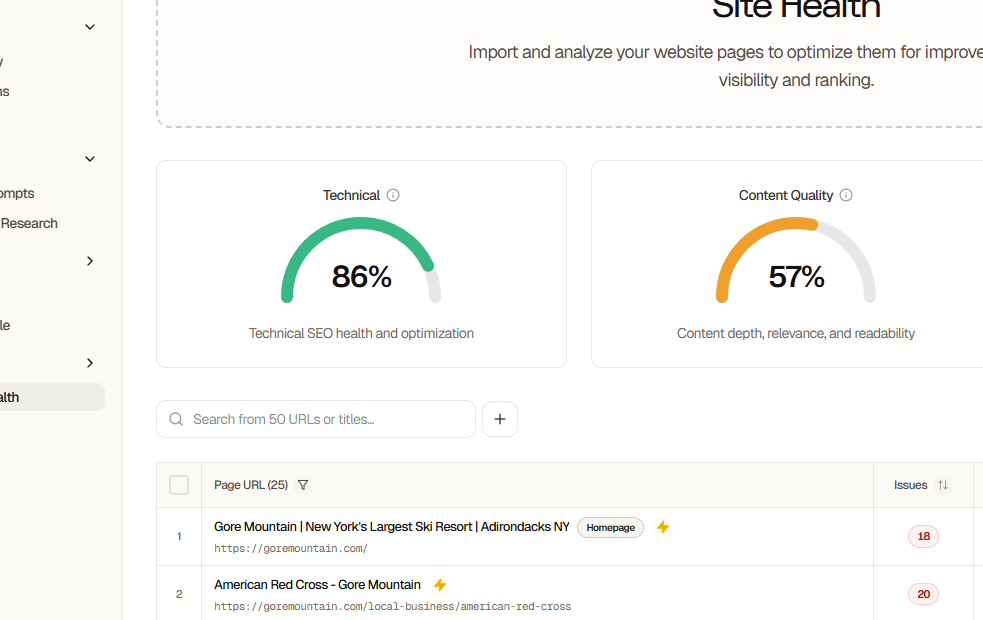 ### Overall Health Score (0-100)
Your combined optimization score calculated as:
```
Overall Health = (Technical × 30%) + (Content × 35%) + (AEO × 35%)
```
**Interpretation:**
* **90-100**: Excellent - Well-optimized site
* **70-89**: Good - Minor improvements recommended
* **50-69**: Fair - Several issues need attention
* **Below 50**: Poor - Significant work needed
### Technical Score (0-100)
Measures site performance and technical SEO:
* Page speed and Core Web Vitals
* Mobile-friendliness
* Crawlability and indexing
* Technical SEO fundamentals
### Content Score (0-100)
Evaluates content quality and optimization:
* Content depth and value
* Keyword optimization
* Structure and readability
* Internal linking
* Meta data completeness
### AEO Score (0-100)
Answer Engine Optimization readiness:
* Structured data implementation
* Citation-worthy content
* Clear answer formatting
* Topic authority
* AI model accessibility
For detailed explanations of each score and how to improve them, see [Understanding Scores](/using-searchable/understanding-scores).
## After Checklist Completion
Once you've finished the 5 essential steps, establish a daily workflow:
### Morning Routine (5 minutes)
Review overnight changes in scores and AI mentions
Identify high-impact, low-effort improvements
Check for critical issues or significant visibility changes
### Daily Tasks (10-15 minutes)
Review new issues in Issues tab - fix critical items immediately
Monitor prompt performance - note any significant changes
Check AI visibility trends - celebrate improvements
### Weekly Review (30 minutes)
* Which prompts gained mentions?
* Which need better content?
* Add 3-5 new prompts based on insights
* Choose 2-3 zero-mention prompts
* Schedule article creation
* Update existing content if needed
* Tackle 2-3 high-priority issues from audit
* Re-audit affected pages
* Track score improvements
### Monthly Strategy (1-2 hours)
* **Review overall trends**: Compare month-over-month improvements
* **Competitive analysis**: How are competitors performing?
* **Content performance**: Which articles drive the most AI citations?
* **Goal assessment**: Are you hitting your visibility targets?
* **Strategy adjustment**: What's working? What needs to change?
## Dashboard Features by Tab
### Overview Tab
Your default landing page showing:
* Health scores with trend indicators
* Recent activity feed
* Quick wins section
* Performance charts
### Pages Tab
Monitor all your website pages:
### Overall Health Score (0-100)
Your combined optimization score calculated as:
```
Overall Health = (Technical × 30%) + (Content × 35%) + (AEO × 35%)
```
**Interpretation:**
* **90-100**: Excellent - Well-optimized site
* **70-89**: Good - Minor improvements recommended
* **50-69**: Fair - Several issues need attention
* **Below 50**: Poor - Significant work needed
### Technical Score (0-100)
Measures site performance and technical SEO:
* Page speed and Core Web Vitals
* Mobile-friendliness
* Crawlability and indexing
* Technical SEO fundamentals
### Content Score (0-100)
Evaluates content quality and optimization:
* Content depth and value
* Keyword optimization
* Structure and readability
* Internal linking
* Meta data completeness
### AEO Score (0-100)
Answer Engine Optimization readiness:
* Structured data implementation
* Citation-worthy content
* Clear answer formatting
* Topic authority
* AI model accessibility
For detailed explanations of each score and how to improve them, see [Understanding Scores](/using-searchable/understanding-scores).
## After Checklist Completion
Once you've finished the 5 essential steps, establish a daily workflow:
### Morning Routine (5 minutes)
Review overnight changes in scores and AI mentions
Identify high-impact, low-effort improvements
Check for critical issues or significant visibility changes
### Daily Tasks (10-15 minutes)
Review new issues in Issues tab - fix critical items immediately
Monitor prompt performance - note any significant changes
Check AI visibility trends - celebrate improvements
### Weekly Review (30 minutes)
* Which prompts gained mentions?
* Which need better content?
* Add 3-5 new prompts based on insights
* Choose 2-3 zero-mention prompts
* Schedule article creation
* Update existing content if needed
* Tackle 2-3 high-priority issues from audit
* Re-audit affected pages
* Track score improvements
### Monthly Strategy (1-2 hours)
* **Review overall trends**: Compare month-over-month improvements
* **Competitive analysis**: How are competitors performing?
* **Content performance**: Which articles drive the most AI citations?
* **Goal assessment**: Are you hitting your visibility targets?
* **Strategy adjustment**: What's working? What needs to change?
## Dashboard Features by Tab
### Overview Tab
Your default landing page showing:
* Health scores with trend indicators
* Recent activity feed
* Quick wins section
* Performance charts
### Pages Tab
Monitor all your website pages:
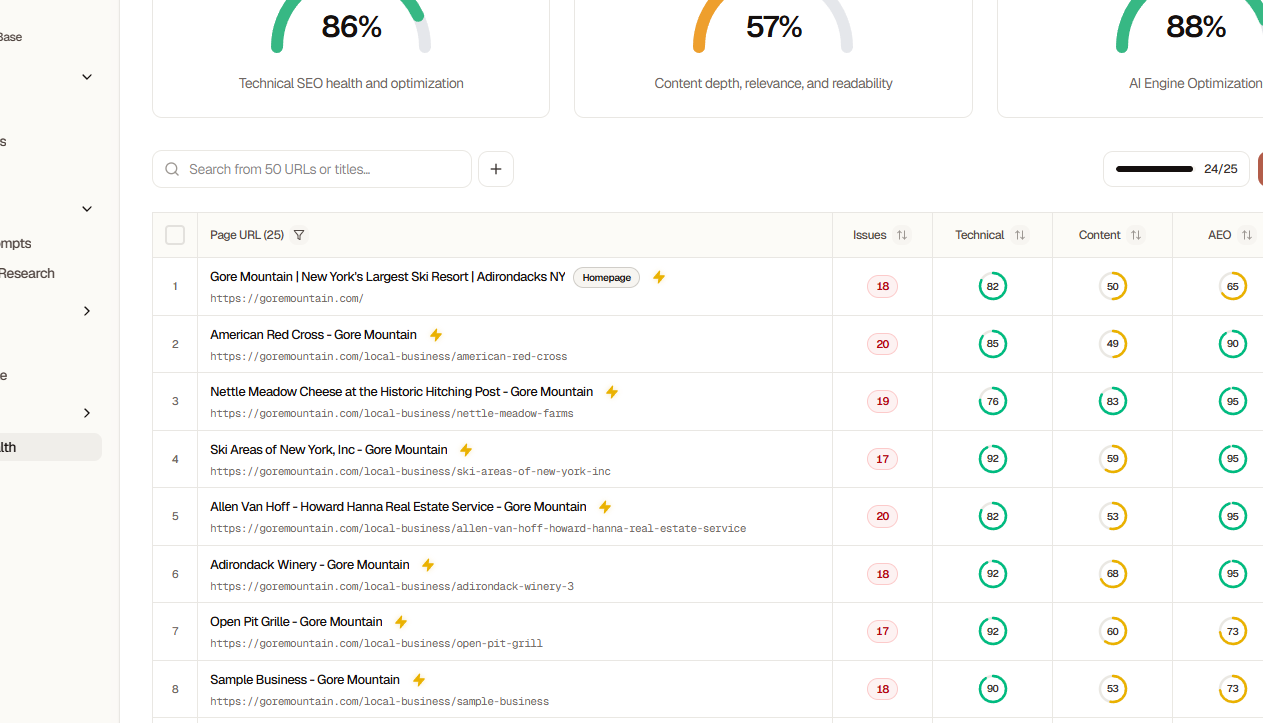 * Individual page scores
* Issues per page
* Last audited timestamp
* Bulk actions available
### Issues Tab
All detected problems across your site:
* Grouped by severity (Critical → Low)
* Filterable by type (Technical, Content, AEO)
* Actionable fix recommendations
* Track resolution progress
### Prompts Tab
Manage AI visibility tracking:
* All tracked prompts with performance metrics
* Add/edit/archive prompts
* Bulk import from CSV
* Performance analytics per prompt
### Content Tab
AI-powered content workspace:
* Draft and published articles
* Content generation tools
* Performance tracking
* Publishing integrations
### Analytics Tab
Deep dive into data:
* Visibility trends over time
* Competitor comparisons
* Citation analysis
* Traffic correlation (with GA4)
## Common Questions
Excellent! Now you transition to the daily/weekly workflow above. Focus on:
1. Creating content for zero-mention prompts (2-3 articles/month)
2. Fixing high-priority issues from audits
3. Monitoring visibility trends and competitor movements
4. Refining your prompt strategy based on performance
The checklist gets you started; the ongoing workflow builds long-term AI visibility.
Technically yes, but not recommended. Each step builds on the previous:
* Without knowledge base: Generic recommendations, no personalization
* Without visibility baseline: No benchmark to measure progress
* Without prompt optimization: Wasted tracking quota on poor prompts
* Without audit: Missing critical issues that hurt AI visibility
* Without first article: No content for AI models to cite
Complete all 5 steps for best results. Takes about 1 hour total.
**Daily (5-10 min):**
* Check Overview for critical issues or major changes
* Review notifications
* Monitor visibility score trends
**Weekly (30 min):**
* Analyze prompt performance
* Plan content based on gaps
* Fix 2-3 high-priority issues
**Monthly (1-2 hours):**
* Strategic review of all metrics
* Competitive analysis
* Adjust goals and strategy
Don't obsess over daily fluctuations - focus on weekly/monthly trends.
Follow the checklist order:
1. **Create/Agent**: Set up knowledge base (once)
2. **Analytics**: Understand visibility baseline (review, then weekly)
3. **Prompts**: Optimize tracking (review, then weekly)
4. **Optimize**: Fix issues (ongoing, prioritized by severity)
5. **Content**: Generate articles (2-3 per month)
After initial setup, spend most time on **Issues** (fixing problems) and **Content** (creating articles).
**Real-time:**
* Issue status changes
* Team activity
* Content drafts
**Hourly:**
* AI visibility data
* Prompt mention checks
**Continuous (within plan limits):**
* Page audits run on your schedule
* Starter: 25 pages/month
* Professional: 100 pages/month
* Agency: 500 pages/month
* Custom: Tailored allocation
**Historical Data:**
* Starter: 3 months retention
* Professional: 12 months retention
* Agency & Custom: Unlimited retention
Yes! Invite team members in **Settings** → **Team**.
**Team member limits:**
* Starter: 1 seat (just you)
* Professional: 10 seats
* Agency: 25 seats
* Custom: Contracted allocation
**Roles available:**
* Admin: Full access including billing
* Editor: Edit content and settings
* Viewer: Read-only access
All team members see the same checklist progress and can collaborate on completing steps.
Some metrics require integrations or sufficient data:
**Missing traffic data:** Connect Google Analytics 4 in Settings → Integrations
**Missing keyword data:** Connect Google Search Console in Settings → Integrations
**Incomplete scores:** New sites need at least one full audit cycle (wait 24-48 hours)
**Zero AI mentions:** Normal for new brands - build content and give AI models 2-4 weeks to update
## Dashboard Performance
If your dashboard loads slowly:
1. **Reduce Date Range**: View last 30 days instead of 12 months
2. **Limit Pages**: Focus monitoring on priority pages only
3. **Clear Filters**: Reset any active filters on tables
4. **Check Connection**: Ensure stable internet connection
5. **Contact Support**: Email [support@searchable.com](mailto:support@searchable.com) if issues persist
## Next Steps
Deep dive into what each score means and how to improve them
Master advanced prompt strategies and templates
Comprehensive guide to running and interpreting audits
Advanced content creation and optimization techniques
Connect Google Search Console, GA4, and your CMS
Upgrade for higher limits and advanced features
* Individual page scores
* Issues per page
* Last audited timestamp
* Bulk actions available
### Issues Tab
All detected problems across your site:
* Grouped by severity (Critical → Low)
* Filterable by type (Technical, Content, AEO)
* Actionable fix recommendations
* Track resolution progress
### Prompts Tab
Manage AI visibility tracking:
* All tracked prompts with performance metrics
* Add/edit/archive prompts
* Bulk import from CSV
* Performance analytics per prompt
### Content Tab
AI-powered content workspace:
* Draft and published articles
* Content generation tools
* Performance tracking
* Publishing integrations
### Analytics Tab
Deep dive into data:
* Visibility trends over time
* Competitor comparisons
* Citation analysis
* Traffic correlation (with GA4)
## Common Questions
Excellent! Now you transition to the daily/weekly workflow above. Focus on:
1. Creating content for zero-mention prompts (2-3 articles/month)
2. Fixing high-priority issues from audits
3. Monitoring visibility trends and competitor movements
4. Refining your prompt strategy based on performance
The checklist gets you started; the ongoing workflow builds long-term AI visibility.
Technically yes, but not recommended. Each step builds on the previous:
* Without knowledge base: Generic recommendations, no personalization
* Without visibility baseline: No benchmark to measure progress
* Without prompt optimization: Wasted tracking quota on poor prompts
* Without audit: Missing critical issues that hurt AI visibility
* Without first article: No content for AI models to cite
Complete all 5 steps for best results. Takes about 1 hour total.
**Daily (5-10 min):**
* Check Overview for critical issues or major changes
* Review notifications
* Monitor visibility score trends
**Weekly (30 min):**
* Analyze prompt performance
* Plan content based on gaps
* Fix 2-3 high-priority issues
**Monthly (1-2 hours):**
* Strategic review of all metrics
* Competitive analysis
* Adjust goals and strategy
Don't obsess over daily fluctuations - focus on weekly/monthly trends.
Follow the checklist order:
1. **Create/Agent**: Set up knowledge base (once)
2. **Analytics**: Understand visibility baseline (review, then weekly)
3. **Prompts**: Optimize tracking (review, then weekly)
4. **Optimize**: Fix issues (ongoing, prioritized by severity)
5. **Content**: Generate articles (2-3 per month)
After initial setup, spend most time on **Issues** (fixing problems) and **Content** (creating articles).
**Real-time:**
* Issue status changes
* Team activity
* Content drafts
**Hourly:**
* AI visibility data
* Prompt mention checks
**Continuous (within plan limits):**
* Page audits run on your schedule
* Starter: 25 pages/month
* Professional: 100 pages/month
* Agency: 500 pages/month
* Custom: Tailored allocation
**Historical Data:**
* Starter: 3 months retention
* Professional: 12 months retention
* Agency & Custom: Unlimited retention
Yes! Invite team members in **Settings** → **Team**.
**Team member limits:**
* Starter: 1 seat (just you)
* Professional: 10 seats
* Agency: 25 seats
* Custom: Contracted allocation
**Roles available:**
* Admin: Full access including billing
* Editor: Edit content and settings
* Viewer: Read-only access
All team members see the same checklist progress and can collaborate on completing steps.
Some metrics require integrations or sufficient data:
**Missing traffic data:** Connect Google Analytics 4 in Settings → Integrations
**Missing keyword data:** Connect Google Search Console in Settings → Integrations
**Incomplete scores:** New sites need at least one full audit cycle (wait 24-48 hours)
**Zero AI mentions:** Normal for new brands - build content and give AI models 2-4 weeks to update
## Dashboard Performance
If your dashboard loads slowly:
1. **Reduce Date Range**: View last 30 days instead of 12 months
2. **Limit Pages**: Focus monitoring on priority pages only
3. **Clear Filters**: Reset any active filters on tables
4. **Check Connection**: Ensure stable internet connection
5. **Contact Support**: Email [support@searchable.com](mailto:support@searchable.com) if issues persist
## Next Steps
Deep dive into what each score means and how to improve them
Master advanced prompt strategies and templates
Comprehensive guide to running and interpreting audits
Advanced content creation and optimization techniques
Connect Google Search Console, GA4, and your CMS
Upgrade for higher limits and advanced features