> ## Documentation Index
> Fetch the complete documentation index at: https://docs.searchable.com/llms.txt
> Use this file to discover all available pages before exploring further.
# Google Analytics 4 Integration
> Connect GA4 to track traffic, conversions, and user behavior from AI platforms
## Overview
Integrate Google Analytics 4 with Searchable to understand how AI visibility translates to website traffic and conversions. Track user journeys from AI platforms to your site.
GA4 integration is available on Professional, Agency, and Custom plans.
## Benefits
See which AI platforms drive visitors
Measure ROI of AI visibility efforts
Understand how AI-referred users interact
Calculate financial value of AI mentions
### What Data Gets Synced
* **Traffic Sources**: Where visitors come from (including AI platforms)
* **User Behavior**: Pages viewed, time on site, bounce rate
* **Conversions**: Goal completions and e-commerce transactions
* **Demographics**: Age, gender, interests (aggregated)
* **Technology**: Device, browser, OS
* **Events**: Custom events and interactions
* **Engagement**: Session duration, scroll depth, clicks
## Prerequisites
Have Google Analytics 4 property set up for your website
Editor or Administrator access to the GA4 property
At least 7 days of traffic data in GA4
Searchable Professional, Agency, or Custom plan
Viewer access in GA4 is insufficient. You need Editor or Administrator permissions to connect.
## Setup Guide
In Searchable:
1. Go to **Settings** → **Integrations**
2. Find **Google Analytics 4**
3. Click **Connect**
1. Select your Google account
2. Review permissions
3. Click **Allow**
**Permissions needed:**
* View Analytics data
* Edit Analytics configuration (for enhanced tracking)
Choose your property:
* Select the correct GA4 property (not Universal Analytics)
* Multiple properties? Choose your main website
* Can connect additional properties later
Enable advanced features:
**AI Referrer Tracking:**
* Automatically tags traffic from AI platforms
* Creates custom dimensions for AI sources
* Tracks specific AI models (ChatGPT, Claude, etc.)
**Event Tracking:**
* Tracks AI-related events
* Content engagement from AI visitors
* Conversion attribution
Recommended: Enable enhanced tracking for complete insights.
* Click **"Start Sync"**
* First sync takes 1-3 minutes
* Historical data import (last 30 days)
* Email notification when complete
Check that data is flowing:
1. Go to **Analytics** tab
2. See GA4 widgets and charts
3. Verify traffic numbers match GA4
4. Check "Last Synced" timestamp
## AI Traffic Attribution
### How Searchable Tracks AI Referrers
When enhanced tracking is enabled:
**UTM Parameters:**
```text theme={null}
?utm_source=chatgpt&utm_medium=ai&utm_campaign=searchable_tracking
```
**Custom Dimensions:**
* `ai_platform`: Which AI model (ChatGPT, Claude, Gemini, etc.)
* `ai_prompt`: Which tracked prompt drove the visit (hashed)
* `ai_session`: Session identifier from AI platform
**Referrer Detection:**
* Direct traffic analysis
* URL pattern matching
* Custom JavaScript tracking
* Server-side attribution
### Viewing AI Traffic
In Searchable Analytics:
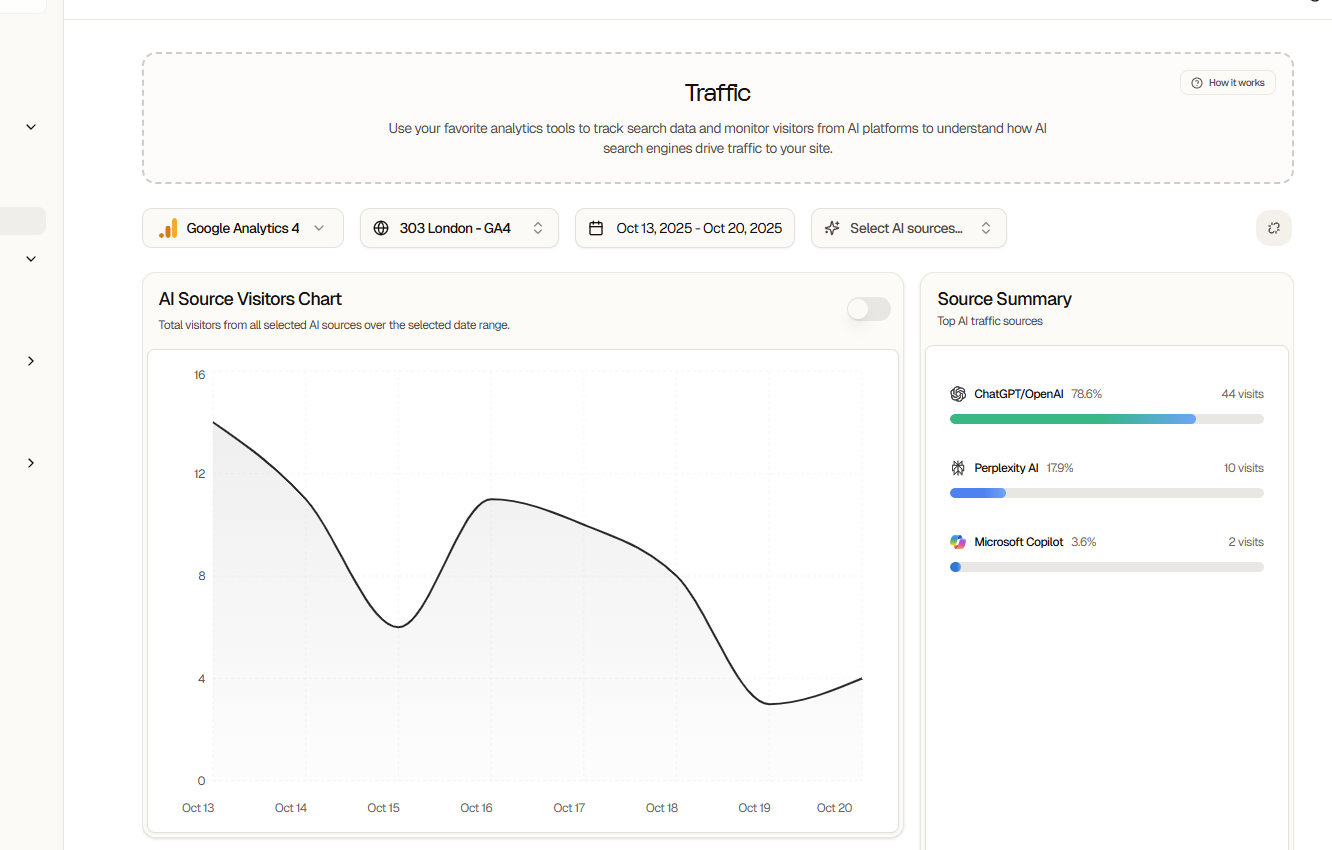 **Metrics Available:**
* Sessions from each AI platform
* Page views per AI source
* Average session duration
* Bounce rate by AI platform
* Conversions attributed to AI
* Revenue from AI-referred traffic
## Conversion Tracking
### Setting Up Goals
Define what counts as a conversion:
**E-commerce:**
* Purchases
* Add to cart
* Checkout initiated
* Revenue tracking
**Lead Generation:**
* Form submissions
* Email signups
* Demo requests
* Contact form fills
**Engagement:**
* Time on site > X minutes
* Pages per session > X
* Scroll depth > X%
* Video plays
### AI Conversion Attribution
See which prompts drive conversions:
1. **Direct Attribution**: User converts in same session
2. **Assisted Conversions**: AI visit assists later conversion
3. **Multi-Touch**: AI touchpoint in longer journey
**Example Report:**
```text theme={null}
Prompt: "What are the best CRM tools for startups?"
- Sessions: 145
- Conversions: 12
- Conversion Rate: 8.3%
- Revenue: $4,800
- ROI: $33 per mention
```
## User Behavior Analysis
### AI Visitor Behavior
Compare AI-referred vs. other visitors:
| Metric | AI-Referred | Organic Search | Direct |
| -------------------- | ----------- | -------------- | ------ |
| Avg Session Duration | 4:32 | 2:15 | 3:05 |
| Pages / Session | 4.2 | 2.3 | 3.1 |
| Bounce Rate | 32% | 58% | 45% |
| Conversion Rate | 5.2% | 2.8% | 3.9% |
**Insights:**
* AI-referred visitors often spend more time
* Higher engagement and conversion rates
* Different page paths and interests
### Content Performance
See which content attracts AI-referred visitors:
* Most viewed pages
* Entry pages from AI
* Exit pages
* Content engagement
* Internal navigation patterns
## Dashboard Widgets
### Traffic Overview
* Total visitors
* AI vs. non-AI breakdown
* Traffic trends over time
* Platform distribution
### Conversion Funnel
* Visitors → Engaged → Converted
* Drop-off points
* Conversion rates by source
* Revenue attribution
### Real-Time
* Active users now
* Traffic sources (live)
* Popular pages
* Recent conversions
### Audience Insights
* Demographics
* Interests
* Technology
* Geographic distribution
## Data Refresh
| Plan | Sync Frequency | Historical Data | Delay |
| ------------ | -------------- | --------------- | ----------- |
| Professional | Hourly | 90 days | 24 hours\* |
| Agency | Real-time | Unlimited | Real-time\* |
| Custom | Real-time | Custom | SLA-based |
\*Google Analytics 4 has inherent data processing delays of 24-48 hours
## Troubleshooting
**Common Issues:**
* Insufficient GA4 permissions
* Wrong property type (UA vs. GA4)
* Account access issues
**Solutions:**
* Verify Editor/Admin access in GA4
* Ensure using GA4 (not Universal Analytics)
* Try different Google account
* Check GA4 property is active
**Possible Causes:**
* Brand new property (no data yet)
* Wrong property selected
* GA4 not receiving traffic
* Filters excluding data
**Check:**
* Property has data in GA4 directly
* Selected correct property
* GA4 tracking code is installed
* Wait 24-48 hours for data processing
**Why This Happens:**
* Enhanced tracking not enabled
* AI visitors use VPNs/privacy tools
* Insufficient sample size
* Attribution window too short
**Solutions:**
* Enable enhanced tracking in integration settings
* Wait for more data (needs 100+ visitors)
* Adjust attribution window
* Verify tracking parameters are working
## Privacy & Compliance
**Data Handling:**
* Only aggregated data is stored
* No personally identifiable information
* GDPR and CCPA compliant
* User privacy respected
**Cookie Consent:**
* Searchable respects your existing consent setup
* No additional cookies required
* Works with consent management platforms
**Data Retention:**
* Pro: 90 days
* Agency: Unlimited retention
* Custom: Custom retention windows
* Can be deleted anytime
## Advanced Features (Custom)
### Custom Reports
Build custom dashboards:
* Drag-and-drop metrics
* Custom dimensions
* Calculated fields
* Scheduled exports
### Predictive Analytics
AI-powered predictions:
* Conversion probability
* Churn likelihood
* Lifetime value
* Trend forecasting
### Cross-Domain Tracking
Track users across multiple properties:
* Main site + subdomain
* Multiple brand websites
* App + web tracking
### Data Studio Integration
Export to Google Data Studio:
* Pre-built templates
* Custom visualizations
* Automated reporting
* Stakeholder dashboards
## Best Practices
Enable enhanced tracking for AI attribution
Set up conversion goals from day one
Monitor AI traffic weekly
Compare AI vs. organic visitor behavior
Use insights to optimize prompt strategy
Track ROI of AI visibility efforts
## Use Cases
### Calculate AI ROI
```text theme={null}
Monthly AI Mentions: 500
AI-Referred Sessions: 250
Conversions: 20
Conversion Value: $100
Total Revenue: $2,000
Cost of Searchable Pro: $49
ROI: 4,000% ($2,000 / $49)
```
### Optimize Content
1. Identify pages with high AI traffic
2. See which ones convert best
3. Create similar content
4. Optimize low-converting pages
### Improve Prompts
1. Track which prompts drive most traffic
2. Measure conversion rates per prompt
3. Double down on high-converters
4. Refine or remove low-performers
## Disconnecting GA4
To disconnect:
1. Settings → Integrations
2. Click "Disconnect" on GA4
3. Confirm disconnection
**What Happens:**
* No new data synced
* Historical data preserved (30 days)
* Can reconnect anytime
* No impact on your GA4 property
## Next Steps
Add GSC for complete SEO data
Turn insights into better content
Master the analytics dashboard
Measure AI-driven performance
**Metrics Available:**
* Sessions from each AI platform
* Page views per AI source
* Average session duration
* Bounce rate by AI platform
* Conversions attributed to AI
* Revenue from AI-referred traffic
## Conversion Tracking
### Setting Up Goals
Define what counts as a conversion:
**E-commerce:**
* Purchases
* Add to cart
* Checkout initiated
* Revenue tracking
**Lead Generation:**
* Form submissions
* Email signups
* Demo requests
* Contact form fills
**Engagement:**
* Time on site > X minutes
* Pages per session > X
* Scroll depth > X%
* Video plays
### AI Conversion Attribution
See which prompts drive conversions:
1. **Direct Attribution**: User converts in same session
2. **Assisted Conversions**: AI visit assists later conversion
3. **Multi-Touch**: AI touchpoint in longer journey
**Example Report:**
```text theme={null}
Prompt: "What are the best CRM tools for startups?"
- Sessions: 145
- Conversions: 12
- Conversion Rate: 8.3%
- Revenue: $4,800
- ROI: $33 per mention
```
## User Behavior Analysis
### AI Visitor Behavior
Compare AI-referred vs. other visitors:
| Metric | AI-Referred | Organic Search | Direct |
| -------------------- | ----------- | -------------- | ------ |
| Avg Session Duration | 4:32 | 2:15 | 3:05 |
| Pages / Session | 4.2 | 2.3 | 3.1 |
| Bounce Rate | 32% | 58% | 45% |
| Conversion Rate | 5.2% | 2.8% | 3.9% |
**Insights:**
* AI-referred visitors often spend more time
* Higher engagement and conversion rates
* Different page paths and interests
### Content Performance
See which content attracts AI-referred visitors:
* Most viewed pages
* Entry pages from AI
* Exit pages
* Content engagement
* Internal navigation patterns
## Dashboard Widgets
### Traffic Overview
* Total visitors
* AI vs. non-AI breakdown
* Traffic trends over time
* Platform distribution
### Conversion Funnel
* Visitors → Engaged → Converted
* Drop-off points
* Conversion rates by source
* Revenue attribution
### Real-Time
* Active users now
* Traffic sources (live)
* Popular pages
* Recent conversions
### Audience Insights
* Demographics
* Interests
* Technology
* Geographic distribution
## Data Refresh
| Plan | Sync Frequency | Historical Data | Delay |
| ------------ | -------------- | --------------- | ----------- |
| Professional | Hourly | 90 days | 24 hours\* |
| Agency | Real-time | Unlimited | Real-time\* |
| Custom | Real-time | Custom | SLA-based |
\*Google Analytics 4 has inherent data processing delays of 24-48 hours
## Troubleshooting
**Common Issues:**
* Insufficient GA4 permissions
* Wrong property type (UA vs. GA4)
* Account access issues
**Solutions:**
* Verify Editor/Admin access in GA4
* Ensure using GA4 (not Universal Analytics)
* Try different Google account
* Check GA4 property is active
**Possible Causes:**
* Brand new property (no data yet)
* Wrong property selected
* GA4 not receiving traffic
* Filters excluding data
**Check:**
* Property has data in GA4 directly
* Selected correct property
* GA4 tracking code is installed
* Wait 24-48 hours for data processing
**Why This Happens:**
* Enhanced tracking not enabled
* AI visitors use VPNs/privacy tools
* Insufficient sample size
* Attribution window too short
**Solutions:**
* Enable enhanced tracking in integration settings
* Wait for more data (needs 100+ visitors)
* Adjust attribution window
* Verify tracking parameters are working
## Privacy & Compliance
**Data Handling:**
* Only aggregated data is stored
* No personally identifiable information
* GDPR and CCPA compliant
* User privacy respected
**Cookie Consent:**
* Searchable respects your existing consent setup
* No additional cookies required
* Works with consent management platforms
**Data Retention:**
* Pro: 90 days
* Agency: Unlimited retention
* Custom: Custom retention windows
* Can be deleted anytime
## Advanced Features (Custom)
### Custom Reports
Build custom dashboards:
* Drag-and-drop metrics
* Custom dimensions
* Calculated fields
* Scheduled exports
### Predictive Analytics
AI-powered predictions:
* Conversion probability
* Churn likelihood
* Lifetime value
* Trend forecasting
### Cross-Domain Tracking
Track users across multiple properties:
* Main site + subdomain
* Multiple brand websites
* App + web tracking
### Data Studio Integration
Export to Google Data Studio:
* Pre-built templates
* Custom visualizations
* Automated reporting
* Stakeholder dashboards
## Best Practices
Enable enhanced tracking for AI attribution
Set up conversion goals from day one
Monitor AI traffic weekly
Compare AI vs. organic visitor behavior
Use insights to optimize prompt strategy
Track ROI of AI visibility efforts
## Use Cases
### Calculate AI ROI
```text theme={null}
Monthly AI Mentions: 500
AI-Referred Sessions: 250
Conversions: 20
Conversion Value: $100
Total Revenue: $2,000
Cost of Searchable Pro: $49
ROI: 4,000% ($2,000 / $49)
```
### Optimize Content
1. Identify pages with high AI traffic
2. See which ones convert best
3. Create similar content
4. Optimize low-converting pages
### Improve Prompts
1. Track which prompts drive most traffic
2. Measure conversion rates per prompt
3. Double down on high-converters
4. Refine or remove low-performers
## Disconnecting GA4
To disconnect:
1. Settings → Integrations
2. Click "Disconnect" on GA4
3. Confirm disconnection
**What Happens:**
* No new data synced
* Historical data preserved (30 days)
* Can reconnect anytime
* No impact on your GA4 property
## Next Steps
Add GSC for complete SEO data
Turn insights into better content
Master the analytics dashboard
Measure AI-driven performance