> ## Documentation Index
> Fetch the complete documentation index at: https://docs.searchable.com/llms.txt
> Use this file to discover all available pages before exploring further.
# Google Search Console Integration
> Connect Google Search Console to enrich your SEO and AEO data
## Overview
Connecting Google Search Console (GSC) to Searchable unlocks powerful insights by combining traditional SEO data with AI visibility metrics. See which keywords drive both Google rankings and AI mentions.
GSC integration is available on Professional, Agency, and Custom plans.
## Benefits
See which keywords perform in both Google and AI platforms
Understand how SEO and AEO work together
Identify crawl errors and indexing problems
Monitor impressions, clicks, CTR, and position
### What Data Gets Synced
* **Keywords**: Queries, impressions, clicks, CTR, average position
* **Pages**: Top performing pages and their metrics
* **Countries**: Geographic performance data
* **Devices**: Desktop, mobile, tablet breakdown
* **Search Appearance**: Rich results, AMP, etc.
* **Coverage**: Indexing status and errors
* **Core Web Vitals**: Performance metrics
* **Mobile Usability**: Mobile-specific issues
## Prerequisites
Before connecting GSC to Searchable:
Have a verified Google Search Console property for your domain
Owner or Full User permission in GSC (not just Restricted access)
At least 28 days of data in GSC (for meaningful analysis)
Searchable Professional, Agency, or Custom plan
Restricted Users in GSC cannot connect integrations. You need Owner or Full User access.
## Setup Guide
In your Searchable project:
1. Go to **Settings**
2. Click **Integrations**
3. Find **Google Search Console**
4. Click **Connect**
A popup window opens:
1. Select your Google account
2. Review permissions requested
3. Click **Allow**
**Permissions needed:**
* View Search Console data
* View and manage your properties
Searchable only reads data - we never modify your GSC settings or data.
Choose the GSC property to connect:
**Property Types:**
* **Domain property**: Recommended (covers all subdomains and protocols)
* **URL prefix**: Only covers specific protocol and subdomain
If you have both types, choose the Domain property for complete coverage.
Set your preferences:
**Sync Frequency:**
* Hourly (recommended for most users)
* Daily (for large sites to reduce API usage)
* Manual (sync on-demand only)
**Data Range:**
* Last 7 days
* Last 28 days (recommended)
* Last 90 days (maximum)
**Filters:**
* Include/exclude specific queries
* Country filters
* Device type filters
Click **"Start Initial Sync"**
* First sync takes 2-5 minutes
* You'll receive an email when complete
* Data appears in Analytics tab
Initial sync imports the full date range. Subsequent syncs only import new data.
Confirm everything is working:
1. Go to **Analytics** tab
2. Look for GSC data widgets
3. Check "Last Synced" timestamp
4. Verify data looks accurate
## Using GSC Data in Searchable
### Keyword Analysis
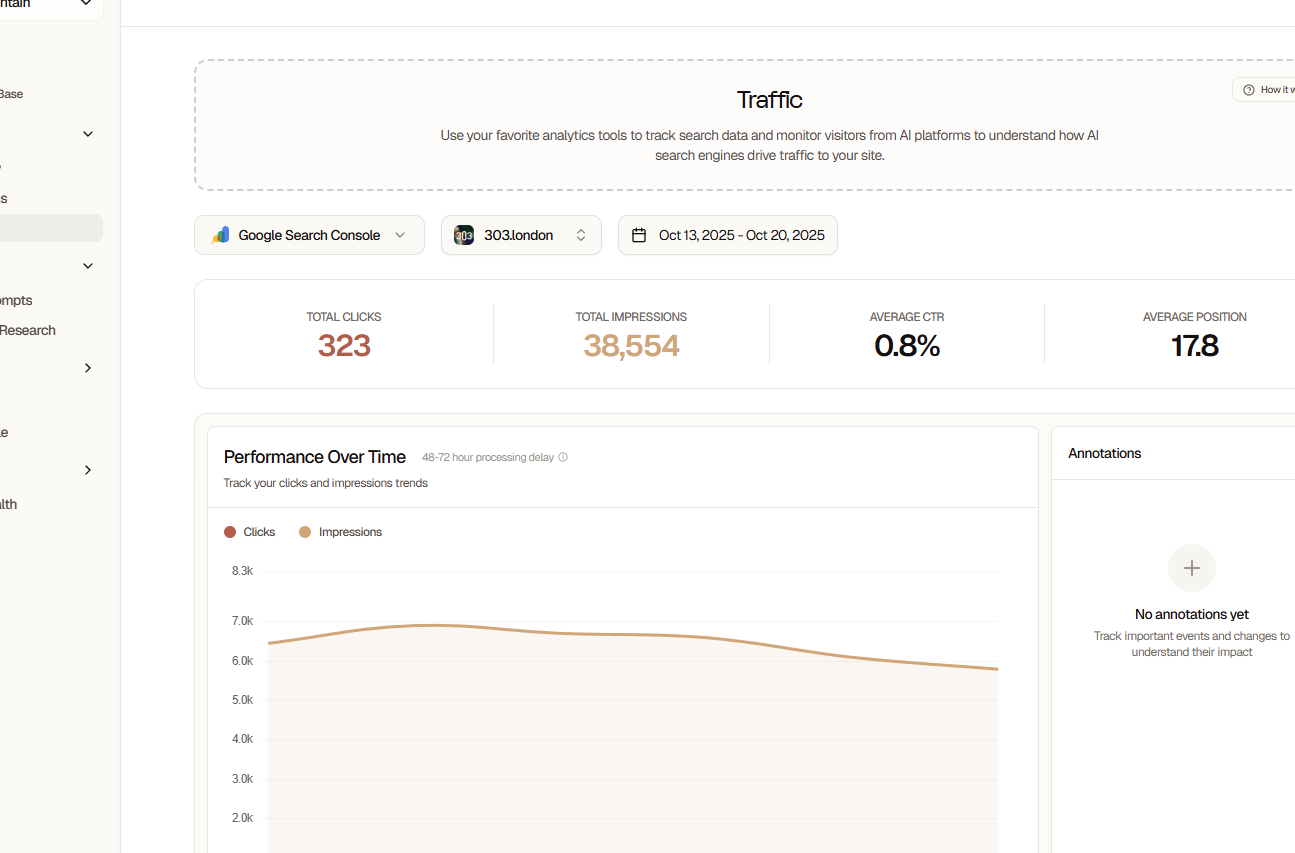 **Combined View:**
* See which keywords rank in Google AND get AI mentions
* Identify high-potential keywords with good SEO but no AI presence
* Find keywords where AI visibility exceeds Google rankings
**Optimization Opportunities:**
* Keywords with high impressions but low AI visibility
* Keywords ranking well in AI but not in Google
* High-CTR keywords to target with content
### Page Performance
**Metrics per Page:**
* Google impressions and clicks
* AI mention frequency
* Combined visibility score
* Traffic sources breakdown
**Insights:**
* Which pages drive most organic traffic
* Which pages get AI citations
* Content gaps and opportunities
* Pages needing optimization
### Search Analytics
**Filters and Segmentation:**
* By date range
* By device (mobile, desktop, tablet)
* By country
* By search appearance
* By query type
**Exports:**
* CSV download of all data
* Custom reports
* Scheduled email reports
## Data Refresh Schedule
| Plan | Sync Frequency | Historical Data | Real-time Updates |
| ------------ | -------------- | --------------- | ----------------- |
| Professional | Hourly | 90 days | Yes |
| Agency | Real-time | Unlimited | Yes |
| Custom | Real-time | Custom | Yes + API |
Google Search Console data has a 2-3 day delay from Google. This is a GSC limitation, not Searchable.
## Understanding the Combined Dashboard
### SEO + AEO Correlation
**High SEO, High AEO** (Top Right Quadrant)
* Your best performing content
* Maintain and expand on these topics
* Use as templates for new content
**High SEO, Low AEO** (Top Left Quadrant)
* Good traditional SEO but AI models don't cite you
* Opportunity: Optimize for AI visibility
* Add structured data, improve answer formats
**Low SEO, High AEO** (Bottom Right Quadrant)
* AI models cite you but Google rank is low
* Opportunity: Improve traditional SEO
* Build backlinks, optimize technical SEO
**Low SEO, Low AEO** (Bottom Left Quadrant)
* Content needs comprehensive optimization
* Consider rewriting or consolidating
* May not be worth the effort vs. creating new content
### Traffic Attribution
See how traffic sources contribute:
```text Example: Traffic Breakdown theme={null}
Total Organic Traffic: 10,000 visitors/month
From Google Search: 8,500 (85%)
From AI Platforms: 1,200 (12%)
From Other Search: 300 (3%)
AI-Referred Conversion Rate: 4.2%
Google-Referred Conversion Rate: 2.8%
```
## Troubleshooting
**Common Causes:**
* Insufficient GSC permissions
* Account not verified in GSC
* Using personal vs. organizational account
**Solutions:**
* Verify you have Owner or Full User access
* Check property is verified in GSC
* Try using a different Google account
* Clear browser cookies and retry
**Possible Reasons:**
* Recently created property (needs 28 days of data)
* Wrong property selected
* Filters excluding all data
* Sync hasn't completed yet
**Check:**
* Property has data in GSC directly
* Selected correct property in Searchable
* Sync status shows "Connected"
* Last sync timestamp is recent
**Error Messages:**
* "Rate limit exceeded": Wait 1 hour, then retry
* "Property not found": Re-verify property ownership in GSC
* "Authentication expired": Disconnect and reconnect
* "Insufficient permissions": Check GSC access level
**Solution:**
Most sync errors resolve by:
1. Disconnecting integration
2. Clearing browser cache
3. Reconnecting with fresh authentication
**Why Data May Differ:**
* Time zone differences
* Date range selection
* Filters applied in Searchable
* GSC data still processing
* Different aggregation methods
**What to Do:**
* Verify same date range in both platforms
* Check timezone settings match
* Remove any active filters
* Allow 24 hours for data to fully sync
## Privacy & Data Handling
**What Searchable Stores:**
* Keyword and page performance metrics
* Aggregated statistics only
* No personally identifiable information
* No individual search query data
**Data Retention:**
* Pro: 90 days of historical data
* Agency: Unlimited retention
* Custom: Custom retention windows
**Data Deletion:**
* Disconnect integration to stop new data sync
* Historical data deleted after 30 days
* Immediate deletion available on request
## Advanced Features
### Custom Dimensions (Custom)
Create custom segments:
* By branded vs. non-branded keywords
* By commercial intent
* By content type
* By funnel stage
### Automated Alerts
Get notified when:
* Ranking drops significantly
* New high-volume keywords discovered
* CTR falls below threshold
* Impressions surge or drop
### API Access
Query GSC data via Searchable API:
```javascript Example: Fetch GSC Keywords theme={null}
const response = await fetch(
'https://api.searchable.com/v1/gsc/keywords',
{
headers: {
'Authorization': 'Bearer YOUR_API_KEY',
'Content-Type': 'application/json'
},
body: JSON.stringify({
projectId: 'your-project-id',
dateRange: 'last28days',
limit: 100
})
}
);
const data = await response.json();
```
## Best Practices
Sync at least 28 days of data for reliable trends
Review GSC insights weekly alongside AI visibility data
Use keyword gaps to inform content strategy
Monitor both SEO and AEO for complete picture
Set up alerts for significant ranking changes
Export data monthly for stakeholder reports
## GSC + Searchable Use Cases
### Content Gap Analysis
1. Identify keywords with high impressions, low clicks
2. Check if AI models cite you for those keywords
3. If yes: Optimize for Google (improve title, meta, CTR)
4. If no: Create better content that answers the query
### Competitive Research
1. Find keywords where you rank on page 2-3
2. Check if competitors get AI citations
3. Create superior content optimized for both
4. Track progress in unified dashboard
### ROI Measurement
1. Track organic traffic from GSC
2. Measure AI-referred traffic
3. Calculate conversion rates for each
4. Determine which channel drives more value
## Disconnecting GSC
To disconnect Google Search Console:
1. Go to Settings → Integrations
2. Find Google Search Console
3. Click **"Disconnect"**
4. Confirm disconnect
**What Happens:**
* No new data is synced
* Historical data preserved for 30 days
* Can reconnect anytime
* No impact on your actual GSC account
## Next Steps
Add GA4 for complete traffic insights
Optimize your keyword approach
Master the analytics dashboard
Access data programmatically
**Combined View:**
* See which keywords rank in Google AND get AI mentions
* Identify high-potential keywords with good SEO but no AI presence
* Find keywords where AI visibility exceeds Google rankings
**Optimization Opportunities:**
* Keywords with high impressions but low AI visibility
* Keywords ranking well in AI but not in Google
* High-CTR keywords to target with content
### Page Performance
**Metrics per Page:**
* Google impressions and clicks
* AI mention frequency
* Combined visibility score
* Traffic sources breakdown
**Insights:**
* Which pages drive most organic traffic
* Which pages get AI citations
* Content gaps and opportunities
* Pages needing optimization
### Search Analytics
**Filters and Segmentation:**
* By date range
* By device (mobile, desktop, tablet)
* By country
* By search appearance
* By query type
**Exports:**
* CSV download of all data
* Custom reports
* Scheduled email reports
## Data Refresh Schedule
| Plan | Sync Frequency | Historical Data | Real-time Updates |
| ------------ | -------------- | --------------- | ----------------- |
| Professional | Hourly | 90 days | Yes |
| Agency | Real-time | Unlimited | Yes |
| Custom | Real-time | Custom | Yes + API |
Google Search Console data has a 2-3 day delay from Google. This is a GSC limitation, not Searchable.
## Understanding the Combined Dashboard
### SEO + AEO Correlation
**High SEO, High AEO** (Top Right Quadrant)
* Your best performing content
* Maintain and expand on these topics
* Use as templates for new content
**High SEO, Low AEO** (Top Left Quadrant)
* Good traditional SEO but AI models don't cite you
* Opportunity: Optimize for AI visibility
* Add structured data, improve answer formats
**Low SEO, High AEO** (Bottom Right Quadrant)
* AI models cite you but Google rank is low
* Opportunity: Improve traditional SEO
* Build backlinks, optimize technical SEO
**Low SEO, Low AEO** (Bottom Left Quadrant)
* Content needs comprehensive optimization
* Consider rewriting or consolidating
* May not be worth the effort vs. creating new content
### Traffic Attribution
See how traffic sources contribute:
```text Example: Traffic Breakdown theme={null}
Total Organic Traffic: 10,000 visitors/month
From Google Search: 8,500 (85%)
From AI Platforms: 1,200 (12%)
From Other Search: 300 (3%)
AI-Referred Conversion Rate: 4.2%
Google-Referred Conversion Rate: 2.8%
```
## Troubleshooting
**Common Causes:**
* Insufficient GSC permissions
* Account not verified in GSC
* Using personal vs. organizational account
**Solutions:**
* Verify you have Owner or Full User access
* Check property is verified in GSC
* Try using a different Google account
* Clear browser cookies and retry
**Possible Reasons:**
* Recently created property (needs 28 days of data)
* Wrong property selected
* Filters excluding all data
* Sync hasn't completed yet
**Check:**
* Property has data in GSC directly
* Selected correct property in Searchable
* Sync status shows "Connected"
* Last sync timestamp is recent
**Error Messages:**
* "Rate limit exceeded": Wait 1 hour, then retry
* "Property not found": Re-verify property ownership in GSC
* "Authentication expired": Disconnect and reconnect
* "Insufficient permissions": Check GSC access level
**Solution:**
Most sync errors resolve by:
1. Disconnecting integration
2. Clearing browser cache
3. Reconnecting with fresh authentication
**Why Data May Differ:**
* Time zone differences
* Date range selection
* Filters applied in Searchable
* GSC data still processing
* Different aggregation methods
**What to Do:**
* Verify same date range in both platforms
* Check timezone settings match
* Remove any active filters
* Allow 24 hours for data to fully sync
## Privacy & Data Handling
**What Searchable Stores:**
* Keyword and page performance metrics
* Aggregated statistics only
* No personally identifiable information
* No individual search query data
**Data Retention:**
* Pro: 90 days of historical data
* Agency: Unlimited retention
* Custom: Custom retention windows
**Data Deletion:**
* Disconnect integration to stop new data sync
* Historical data deleted after 30 days
* Immediate deletion available on request
## Advanced Features
### Custom Dimensions (Custom)
Create custom segments:
* By branded vs. non-branded keywords
* By commercial intent
* By content type
* By funnel stage
### Automated Alerts
Get notified when:
* Ranking drops significantly
* New high-volume keywords discovered
* CTR falls below threshold
* Impressions surge or drop
### API Access
Query GSC data via Searchable API:
```javascript Example: Fetch GSC Keywords theme={null}
const response = await fetch(
'https://api.searchable.com/v1/gsc/keywords',
{
headers: {
'Authorization': 'Bearer YOUR_API_KEY',
'Content-Type': 'application/json'
},
body: JSON.stringify({
projectId: 'your-project-id',
dateRange: 'last28days',
limit: 100
})
}
);
const data = await response.json();
```
## Best Practices
Sync at least 28 days of data for reliable trends
Review GSC insights weekly alongside AI visibility data
Use keyword gaps to inform content strategy
Monitor both SEO and AEO for complete picture
Set up alerts for significant ranking changes
Export data monthly for stakeholder reports
## GSC + Searchable Use Cases
### Content Gap Analysis
1. Identify keywords with high impressions, low clicks
2. Check if AI models cite you for those keywords
3. If yes: Optimize for Google (improve title, meta, CTR)
4. If no: Create better content that answers the query
### Competitive Research
1. Find keywords where you rank on page 2-3
2. Check if competitors get AI citations
3. Create superior content optimized for both
4. Track progress in unified dashboard
### ROI Measurement
1. Track organic traffic from GSC
2. Measure AI-referred traffic
3. Calculate conversion rates for each
4. Determine which channel drives more value
## Disconnecting GSC
To disconnect Google Search Console:
1. Go to Settings → Integrations
2. Find Google Search Console
3. Click **"Disconnect"**
4. Confirm disconnect
**What Happens:**
* No new data is synced
* Historical data preserved for 30 days
* Can reconnect anytime
* No impact on your actual GSC account
## Next Steps
Add GA4 for complete traffic insights
Optimize your keyword approach
Master the analytics dashboard
Access data programmatically